
Also known as Win11 Shell
The desktop you know.On Ubuntu.
WinPoint is a Windows 11 style shell for GNOME. Taskbar, Start, File Explorer, Task Manager and Settings, rebuilt as native GTK 4 programs in Rust.
- Rust
- GTK 4
- GNOME Shell 50
- Wayland
- Ubuntu 26.04
- English & Dutch
The tour
Everything where your hands expect it.
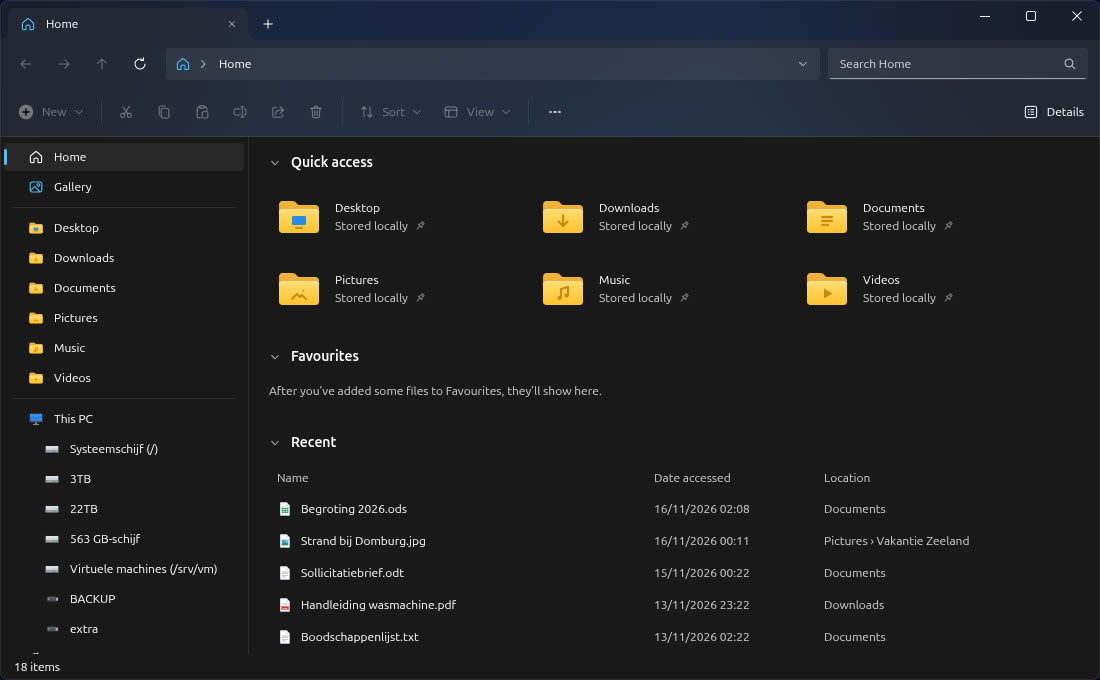
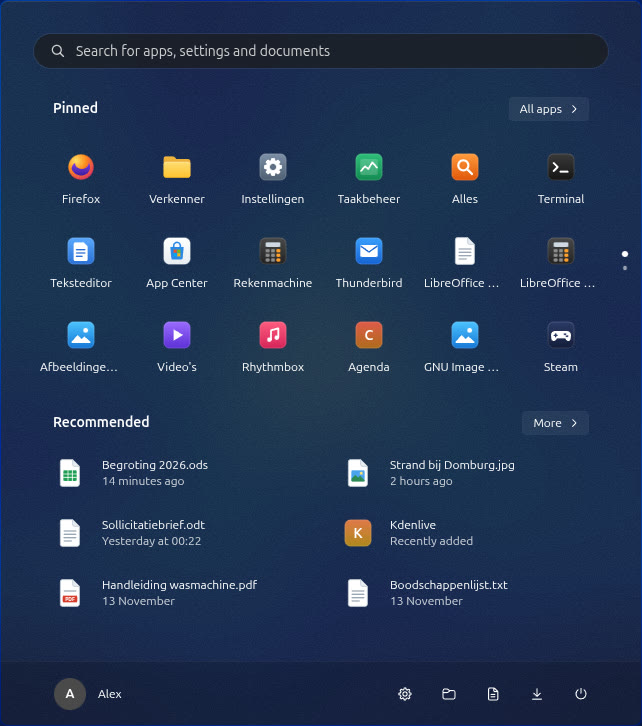
Every screen below is the WinPoint interface itself, the same as the Rust apps, here with demo files. Pick an app.
 WinPoint tour · Start

Start
win11-shell
Test drive
Don't take our word for it. Click around.
This is the WinPoint interface itself, running in your browser with demo files and settings. Open Start, browse File Explorer, flip Quick settings to light mode. Nothing on your computer is touched.
Best on a computer. On a phone, use full screen and turn it sideways.
Under the hood
Native, all the way down.
A GNOME Shell extension starts win11-shell, one GTK 4 process for the taskbar, Start, the flyouts and the desktop, and handles window placement, blur and shortcuts. A Rust backend serves apps, settings, tray icons and files; every app is its own GTK 4 process. Turn the extension off and you have plain GNOME.

win11-shellTaskbar, flyouts, Start and the desktop in one GTK 4 process
win11-panelStarts the shell and serves the Rust services behind it
win11-gtk-explorerFile Explorer with tabs, details pane and Recycle Bin
win11-gtk-settingsSettings, applied live to the shell and every app
win11-gtk-taskmgr · alles · disksTask Manager, instant file search and Disks
win11-gtk-defaultapps · installerDefault apps and App Installer
win11-calendarCalendar with day, week and month views
win11-file-portalFile Explorer as the Open and Save dialog
Shortcuts
Your fingers already know it.
The keys you have pressed a thousand times do what you expect.
Install
Make Ubuntu feel like home.
WinPoint installs into your home folder and adds itself as a choice at the login screen. Your GNOME and Ubuntu sessions stay exactly as they were.
-
1Unpack the download
Open a terminal in the folder where you saved it.
$ tar -xzf winpoint-*-linux-x86_64.tar.gz && cd winpoint-*/ -
2Run the installer
It puts WinPoint in
~/.localand adds WinPoint to the login screen;pkexecasks for your password once. Use--lang nlfor Dutch.$ ./scripts/install.sh --lang en -
3Sign in to WinPoint
Sign out, click your name, pick WinPoint with the gear at the bottom right and sign in. To go back, pick your usual session the same way.


